> For the complete documentation index, see [llms.txt](https://staylime.com/docs/llms.txt). Markdown versions of documentation pages are available by appending `.md` to page URLs; this page is available as [Markdown](https://staylime.com/docs/avante-themes/faq/products-and-variants/how-do-i-show-different-content-per-product.md).
# How do I show different content per product?
Display product-specific size charts, care instructions, or material notes in Avante using metafield-driven collapsible tabs and pop-up blocks.
Use this approach to display product-specific information — size charts, care instructions, material notes, or any other content that varies per product — without duplicating your template.
Avante supports **dynamic metafield sources** in Collapsible tab and Pop-up blocks. If a metafield is empty for a product, the block hides automatically.
***
### Option 1: Metafield per product
Use this when each product needs **its own unique content** — e.g. different size charts for different product categories.
#### **Step 1: Create a metafield definition**
1. Go to **Shopify Admin → Settings → Metafields and metaobjects → Products**
2. Click **Add definition**
3. Fill in:
* **Name:** e.g. `Size chart`
* **Namespace and key:** e.g. `custom.size_chart`
* **Type:** select **Multi-line text**
4. Save
{% hint style="success" %}
**Tip:** Create one metafield per content type — e.g. `custom.size_chart`, `custom.care_instructions`, `custom.materials`. Each gets its own tab on the product page.
{% endhint %}
{% hint style="danger" %}
**File metafields (PDF, image) don't work as dynamic sources in Collapsible tab blocks** — this is a Shopify OS 2.0 limitation. Workaround: create a **Rich text** metafield and paste the PDF URL as a hyperlink inside it. The link will render as clickable text in the tab.
{% endhint %}
***
#### **Step 2: Fill in content for each product**
1. Go to **Shopify Admin → Products** → open a product
2. Scroll to the **Metafields** section at the bottom
3. Find your metafield (e.g. `Size chart`) and enter the content — supports tables, images, and formatted text
4. Save
Products where you leave the metafield empty will not show that tab.
***
#### **Step 3: Connect the metafield to a block in the theme**
1. Open **Theme Editor → Default product template**
2. Inside **Product overview** section, click **Add block**
3. Choose **Collapsible tab** (or **Pop-up** for a modal style)
4. Set the **Tab name** (or **Line text**) — this label is always visible, e.g. "Size chart"
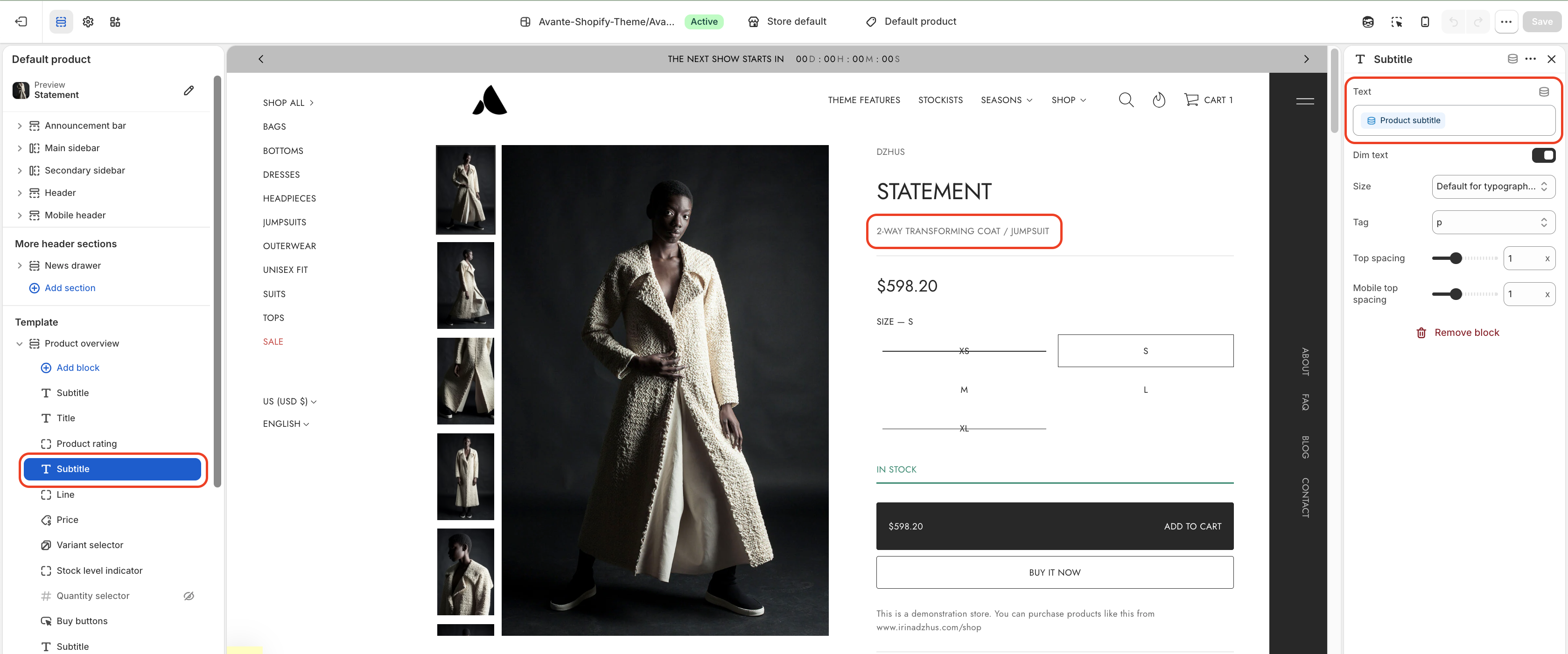
5. For **Text**, click the dynamic source icon `<>` and select your metafield
***
#### **Result**
Products with the metafield filled show the tab with their specific content. Products where the metafield is empty don't show the tab at all.
***
### Option 2: Shopify Page as content source
Use this when **multiple products share the same content** — e.g. one size chart for all T-shirts, another for all hoodies.
1. Go to **Shopify Admin → Online Store → Pages** → create a page with your content (e.g. `"Packaging"`)
2. In **Theme Editor → Product overview → Collapsible tab block**, set **Content source** to **Page**
3. Select your page from the list
You maintain one page and all connected products stay in sync automatically.
{% hint style="warning" %}
**Note:** One page = same content for all products using it. For per-product differences, use Option 1.
{% endhint %}
***
### Option 3: Static content (same on every product)
Type your content directly into the **Text** field. No metafield or page connection needed — the same text will appear on every product using this template.
{% hint style="warning" icon="lightbulb" %}
**Tip:** You can combine both — add static text in the **Text** field AND connect a **Page** for richer content. Both will display together in the same tab.
{% endhint %}
***
### Which option to use?
| Situation | Use |
| -------------------------------------------- | -------------------------------------------- |
| Different content per product | Option 1 — Metafield |
| Same content shared across multiple products | Option 2 — Page |
| Same content on all products | Option 3 — Static text |
| PDF file to display | Option 1 — Rich text metafield with PDF link |
***
### Need a completely different page layout?
If you need different **blocks and sections** per product — not just different content — create separate product templates.
See [Product templates](/docs/avante-themes/templates/default-product.md) for the full guide.
---
# Agent Instructions
This documentation is published with GitBook. GitBook is the documentation platform designed so that both humans and AI agents can read, navigate, and reason over technical content effectively. Learn more at gitbook.com.
## Querying This Documentation
If you need additional information that is not directly available in this page, you can query the documentation by asking a question.
Perform an HTTP GET request on the following URL with the `ask` and `goal` query parameters:
```
GET https://staylime.com/docs/avante-themes/faq/products-and-variants/how-do-i-show-different-content-per-product.md?ask=&goal=
```
`ask` is the immediate question: it should be specific, self-contained, and written in natural language.
`goal` is what the user is ultimately trying to achieve, the reason they need the answer. Sharing it helps GitBook give you a better, more relevant answer. A goal is most helpful when it describes the outcome the user wants rather than restating the question. For example, with `ask=how do I create an API token`, a goal like `automate deployments from our CI pipeline` lets GitBook tailor the answer to that use case.
The response will contain a direct answer to the question and relevant excerpts and sources from the documentation.
Use this mechanism when the answer is not explicitly present in the current page, you need clarification or additional context, or you want to retrieve related documentation sections.