> For the complete documentation index, see [llms.txt](https://staylime.com/docs/llms.txt). Markdown versions of documentation pages are available by appending `.md` to page URLs; this page is available as [Markdown](https://staylime.com/docs/volume-themes/sections/media/social-grid.md).
# Social Grid
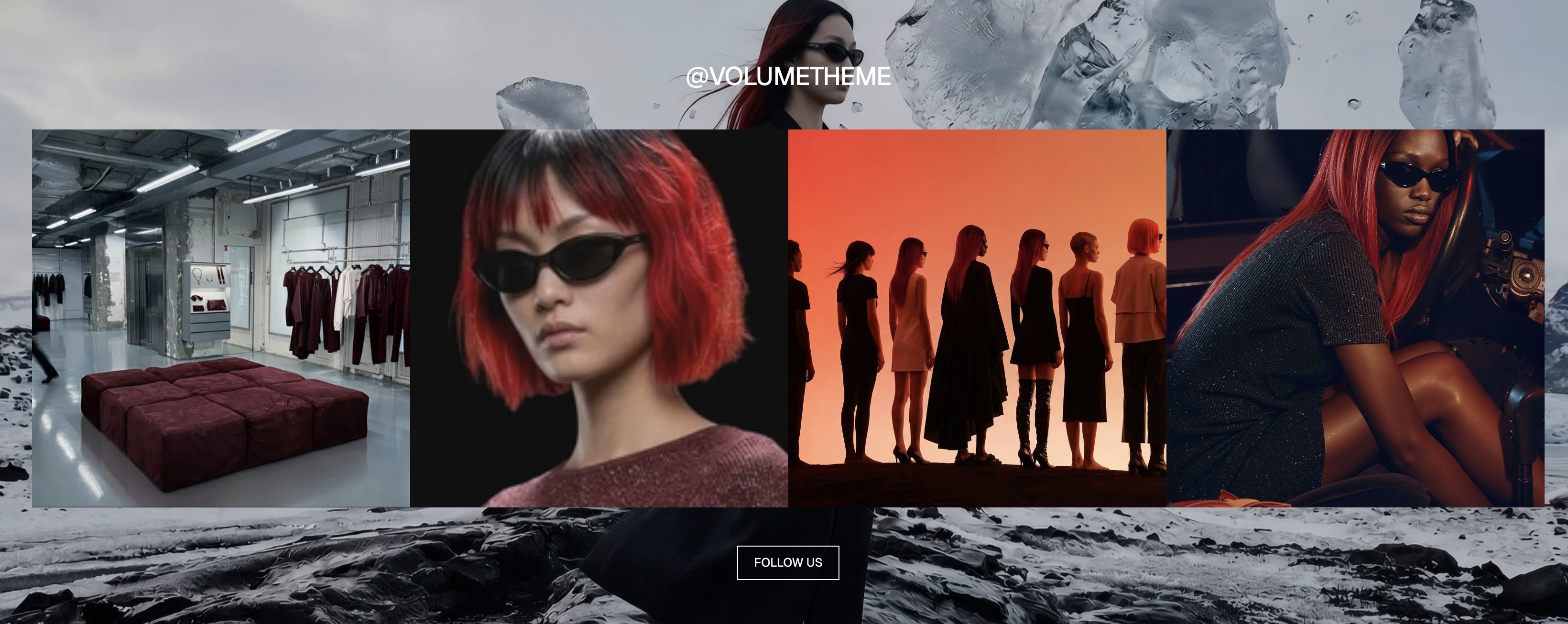
A grid or slider of social-style tiles — images, looping videos and info cards — curated by hand rather than pulled from a feed.
Social proof works best when it looks like social. **Social Grid** builds a row or grid of square tiles — photographs, short looping clips, small info cards — in the visual language of a feed. The difference from an actual feed is the point: you choose what's in it, so the page shows your five best posts instead of whatever you happened to publish last week.
{% hint style="info" %}
**At a glance**
| Where to find it | **Add section → Media** |
| ---------------- | ----------------------------------------------------- |
| Blocks | Image, Loop video, Info card |
| Allowed on | Any template, and the footer |
| Typical use | UGC wall, @handle strip, press mentions, lookbook row |
| {% endhint %} | |
{% hint style="warning" %}
**This is not an Instagram feed.** There is no account connection, no app, no metafield import and no automatic refresh. Every tile is an image or video you upload in the editor, with a link you set yourself. Treat it as a curated wall — and if you need a genuinely live feed, that's a job for a dedicated app.
{% endhint %}
***
### How to add
{% stepper %}
{% step %}
### Add the section
Click **Add section** and pick **Social grid** from the **Media** group. The preset arrives with four image tiles already in place.
{% endstep %}
{% step %}
### Replace the tiles
Swap in your own images, or change a tile to a **Loop video** for motion or an **Info card** for a quote, a statistic or a handle.
{% endstep %}
{% step %}
### Choose slider or grid
**Style** defaults to **Slider** — tiles scroll sideways. Switch to the grid layout if you'd rather show everything at once.
{% endstep %}
{% step %}
### Add the links
Each tile takes its own link — a post, a product, a collection. Whether links open in a new tab is decided once, at section level, for all of them.
{% endstep %}
{% step %}
### Set the mobile "Show more"
Small screens can show a limited number of tiles with a **Show more** button underneath. Setting the value to **0** turns the button off entirely.
{% endstep %}
{% endstepper %}
{% hint style="success" icon="lightbulb" %}
### Good to know
* **The per-tile "open in a new tab" option does nothing.** It appears on the block but isn't wired up — the section-level setting governs every tile. If you need one tile to behave differently from the others, it can't, at least not without custom work.
* **"Show more" is mobile-only.** There's no equivalent on desktop, where the slider or grid simply shows everything.
* **Column count drops to fit the tiles,** exactly as in Multicolumn: ask for more columns than you have blocks and the layout quietly settles for fewer.
* **Only Media ratio = Original keeps each tile's own proportions.** Any other ratio crops every tile to the same shape — usually what you want for a feed look, occasionally not.
* **Tile videos are always muted and always looping,** with no controls. They're moving images, not clips to watch.
* **It's allowed in the footer,** which is where an @handle strip usually belongs.
{% endhint %}
### Customization ideas
The @handle strip
A slider of your best customer photos above the footer, with a heading carrying the handle and every tile linking to the matching post. The classic use, and still the one that earns follows.
Shoppable UGC
Same tiles, but each one links to the product in the picture rather than to the post. The social proof and the purchase path become the same click.
Press wall
**Info card** tiles carrying a pull quote and a publication name, mixed with photographs. Reads as credibility without a dedicated "As seen in" section.
Mixed motion row
Alternate still images with **Loop video** tiles. One or two moving tiles in a row of stills draws the eye; a row where everything moves exhausts it.
Lookbook grid
Grid style, **Media ratio** *Original*, portrait and landscape shots deliberately mixed. Becomes an editorial spread rather than a feed.
***
### Settings reference
Section settings
| Setting | What it does |
| --------------------------------- | ---------------------------------------------------------------------------------------- |
| Style | **Slider** (default) or grid. |
| Desktop max columns | How many tiles per row. Reduced automatically when there aren't enough blocks. |
| Media ratio | Crops every tile to one shape, or *Original* to keep each tile's proportions. |
| Open links in a new tab | Applies to **every** tile. The matching per-block option has no effect. |
| Tiles shown on mobile / Show more | How many tiles appear before the mobile **Show more** button. **0** disables the button. |
**Section layout, Color and Spacing** — the standard Volume groups.
Block reference
**Image** — a tile with a picture and a link.
**Loop video** — a tile with a muted, looping clip and a link.
**Info card** — a text tile: a quote, a statistic, a handle or a short message, used to break up a row of photographs.
### Best practices
* **Curate, don't dump.** Six excellent tiles beat eighteen average ones, and the section is hand-built precisely so you can make that choice.
* **Link every tile somewhere.** A grid of images that can't be clicked trains visitors that the section isn't interactive — and they stop looking at it.
* **Ask before you repost.** Customer photographs belong to the customer; a quick permission message is both good manners and the thing that keeps you out of a copyright complaint.
* **Refresh it seasonally.** A UGC wall that still shows last summer tells visitors the store isn't tended.
## Related
* [Multicolumn](/docs/volume-themes/sections/media/multicolumn.md) — for equal columns with real copy in them
* [Image Slideshow & Stories Slideshow](/docs/volume-themes/sections/media/image-slideshow-and-stories-slideshow.md) — for a story-format social layout
* [Media with Text](/docs/volume-themes/sections/media/media-with-text.md) — when one piece of social proof deserves a whole section
---
# Agent Instructions
This documentation is published with GitBook. GitBook is the documentation platform designed so that both humans and AI agents can read, navigate, and reason over technical content effectively. Learn more at gitbook.com.
## Querying This Documentation
If you need additional information that is not directly available in this page, you can query the documentation by asking a question.
Perform an HTTP GET request on the following URL with the `ask` and `goal` query parameters:
```
GET https://staylime.com/docs/volume-themes/sections/media/social-grid.md?ask=&goal=
```
`ask` is the immediate question: it should be specific, self-contained, and written in natural language.
`goal` is what the user is ultimately trying to achieve, the reason they need the answer. Sharing it helps GitBook give you a better, more relevant answer. A goal is most helpful when it describes the outcome the user wants rather than restating the question. For example, with `ask=how do I create an API token`, a goal like `automate deployments from our CI pipeline` lets GitBook tailor the answer to that use case.
The response will contain a direct answer to the question and relevant excerpts and sources from the documentation.
Use this mechanism when the answer is not explicitly present in the current page, you need clarification or additional context, or you want to retrieve related documentation sections.